First let's clean you data base list:
- Download a CSV file from your current EHR system, email marketing system, events systems and any other app you have collected data from your business.
- Got to any AI such as: ChatGPT, Claude, Gemini, etc, and client your list using this prompt:
You are a data-cleaning assistant. When I upload a CSV, do ALL of the following and return one cleaned CSV.
0) Ingest
Load with tolerant delimiter/encoding detection (
utf-8,utf-8-sig,latin-1).Treat empty strings and whitespace-only cells as blank.
1) Names → merge, then DROP originals
Detect name fields by header:
first,first name,fname,given;middle,mi;last,last name,lname,surname,family.Build Full Name =
First [Middle] Last(collapse extra spaces).Insert Full Name as column 1.
Delete all detected original name columns used in the merge.
2) Addresses → merge, then DROP originals
Detect address fields by header:
address,address 1,address1,street, andaddress 2,address2,apt,suite,unit,line 2.Build Full Address =
Address/Street + Address2/Unitjoined with a single space; collapse duplicate content and extra spaces.Place Full Address immediately after Full Name (as column 2, unless columns are missing).
Delete all original address columns used in the merge.
3) Dates → normalize to MM/DD/YYYY with leading zeros
Identify date-like columns by header keywords:
date,dob,birth,created,updated,added,modified,start,end.For any value that parses as a date, reformat to MM/DD/YYYY (e.g.,
04/01/2025).Leave non-parsable values unchanged.
4) Phones → normalize US 10-digit format
Identify phone columns by header keywords:
phone,mobile,cell.Remove non-digits; if >10 digits, keep the last 10; if exactly 10 digits, format as (xxx) xxx-xxxx; otherwise leave blank.
5) Output
Preserve all other columns and their order.
File name: CLEANED_FINAL_[original_filename].csv
Return a 200-row preview and a download link.
6) Error handling
Skip any rule if no matching columns found.
Never drop columns other than the specific name/address columns used in merges.
Do not fail the job if some cells don’t parse; process what’s valid and keep the rest as-is.
Once you have your clean list, go back to TCW to start importing:
1) Import Contacts
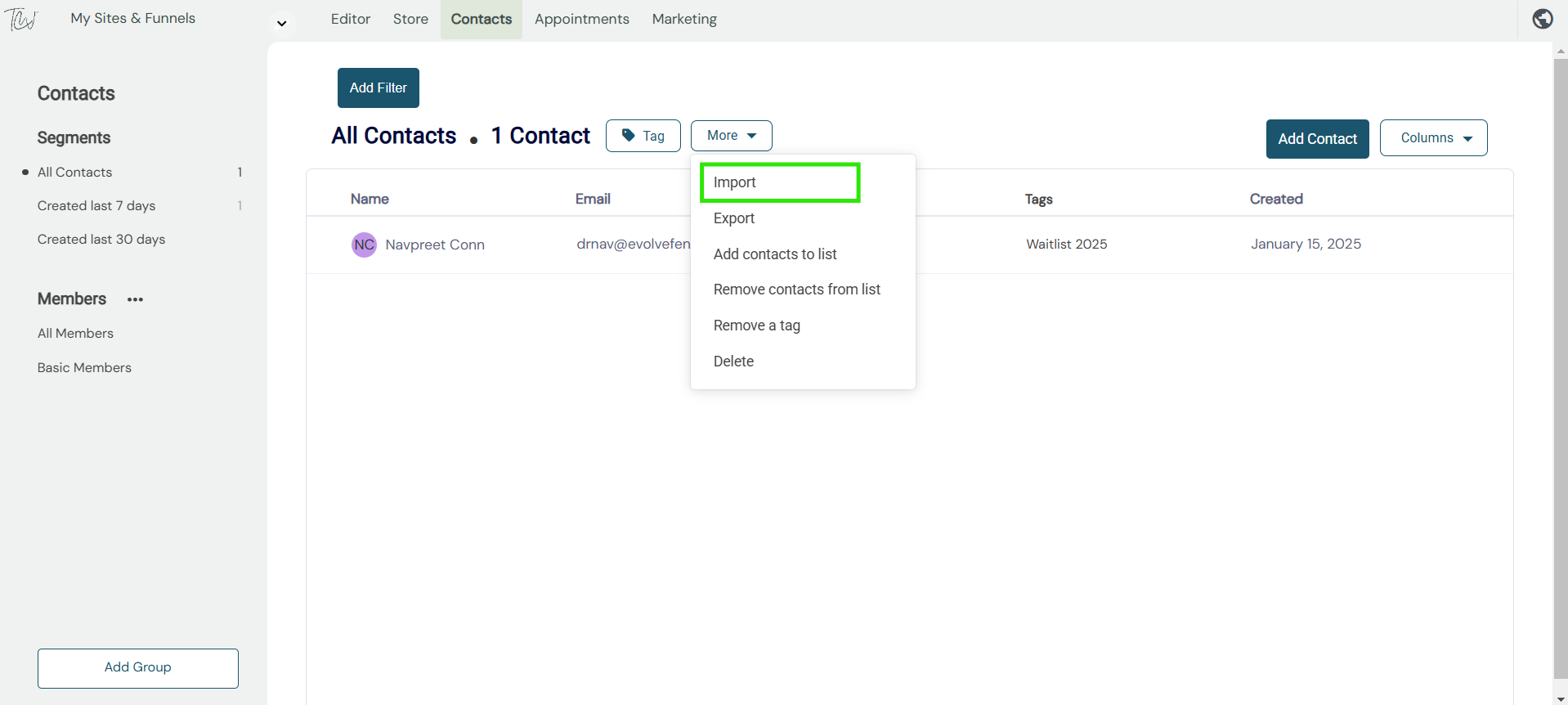
To import contacts simply select > The more tab > Import from the drop-down menu as displayed below
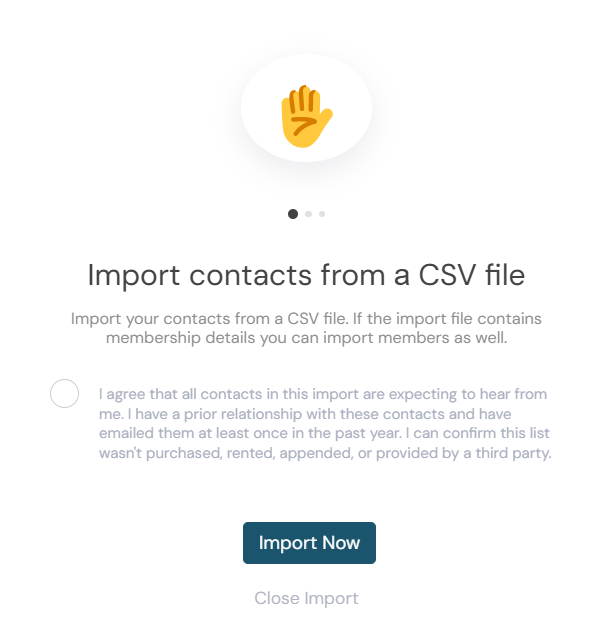
Now a new window will open within the import section. To import your contacts - select Import now and simply add your CSV file containing your client information and that's it. All your contacts will now be automatically added to your Contacts area.